• Skip to primary navigation
  • Skip to main content
  • Skip to primary sidebar

Certification Answers

We help you to pass your exams

  • English
    • Español (Spanish)
    • 繁體中文 (Chinese (Traditional))
    • Français (French)
    • Deutsch (German)
    • Português (Portuguese (Portugal))
    • Русский (Russian)
    • Italiano (Italian)
    • Nederlands (Dutch)
    • polski (Polish)
    • Türkçe (Turkish)
    • 日本語 (Japanese)

EN FR ES DE IT PT RU PL NL TR JA

  • Home
  • Benefits
  • Some of our last scores
  • Our customers say…
  • FAQs
  • Resources
    • Jobs
  • Subscribe
  • Study Guides and Answers
    • SkillShop
      • Google Ads
        • Google Ads Measurement
        • Google Ads Display
        • Google Ads Search
        • Google Ads Shopping Advertising
        • Google Ads Video Advertising
        • Google Ads Apps
        • Google Analytics Individual Qualification
      • Google Marketing Platform
        • Campaign Manager
        • Creative
        • Display & Video 360
        • Search Ads 360
        • Google Mobile Experience Certification Exam Answers
      • Youtube
        • Youtube Channel Growth
        • Youtube Content Ownership
        • Youtube Asset Monetization
        • YouTube Music Assessment
        • YouTube Creative Essentials
        • Video for Brand Basics
      • Digital Transformation Certification
        • Activate customer-centric
        • Choose the right mobile asset
        • How to find mobile customers
        • Make engaging mobile messages
        • Measure mobile effectively
        • Measure your customer-centric
        • Prepare for a programmatic
        • Programmable marketing basics
      • Android Enterprise Academy
        • Android Enterprise Platform Associate
        • Android Enterprise Professional Associate
      • Google My Business Basics
      • Google Waze
        • Waze Local Fundamentals
        • Waze Local advance
      • Smart
        • Measurement Smart
        • Performance Smart
        • Platforms Smart
        • Video Smart
      • Jamboards Academy
        • Deploying Jamboards
        • Selling Jamboards
    • HubSpot
      • HubSpot Inbound Certification Answers
      • HubSpot Inbound Marketing Certification Exam Answers
      • Hubspot Inbound Sales Certification Exam Answers
      • Hubspot Email Marketing Certification Exam Answers
      • Hubspot Content Marketing Exam Answers
      • Hubspot Growth-Driven Design Agency Exam Answers
      • Hubspot Growth-Driven Design Agency Exam Answers
      • HubSpot Sales Software Certification Exam Answers
      • HubSpot Sales Enablement Certification Answers
      • HubSpot Social Media Certification Exam Answers
      • HubSpot Marketing Software Certification Answers
      • HubSpot CMS for Developers Certification Exam Answers
      • HubSpot Contextual Marketing certification Exam Answers
      • HubSpot Sales Management Certification Exam Answers
      • HubSpot Frictionless Sales Certification Exam Answers
      • HubSpot CMS For Marketers Certification Exam Answers
      • Hubspot Service Hub Software Certification Answers
      • HubSpot Reporting Certification Exam Answers
      • HubSpot Digital Advertising Certification Answers
      • Hubspot Client Management Certification Exam Answers
      • Hubspot Sales Hub Implementation Answers
      • Hubspot CMS Hub Implementation Certification Answers
      • HubSpot PieSync Fundamentals Certification Exam Answers
      • HubSpot Guided Client Onboarding Certification Exam Answers
      • Hubspot Platform Consulting Certification Exam Answers
      • HubSpot Trainer Certification Answers
      • Hubspot Partner Demo Course Answers
      • HubSpot Solutions Partner Certification Answers
    • Hootsuite
      • Hootsuite Platform
      • Hootsuite Social Marketing
    • Google Digital Garage
    • Bing Ads
    • Analytics Academy
      • Google Analytics for Beginners
      • Advanced Google Analytics
      • Google Analytics for Power Users
      • Getting Started With Google Analytics 360
      • Introduction to Data Studio
      • Google Tag Manager Fundamentals
    • Google Educator Level 1
    • Klipfolio Certification
      • Klipfolio Expert Certification
      • Klipfolio Partner Certification
    • Yandex
      • Yandex Direct
      • Yandex Metrica
    • Amazon
      • Amazon DSP Certification Assessment Answers
      • Amazon Retail for Advertisers Certification Assessment Answers
      • Amazon Sponsored Ads Certification Assessment Answers
    • Twitter
      • Twitter Video Ad Badge Assessment Answers
    • Woorank
  • Contact

Home » Uncategorized @en » Page 22

Uncategorized @en

Segments are applied before sampling in reports.

August 30, 2017 By CertificationAnswers


Segments are applied before sampling in reports.


False


True


Explanation:

Analytics applies segments after it samples the property-level data, and after it applies filters, which can also reduce the number of sessions included in a sample.
https://support.google.com/analytics/answer/2637192?hl=en


In data analysis, sampling is the practice of analysing a subset of all data in order to uncover the meaningful information in the larger data set. For example, if you wanted to estimate the number of trees in a 100-acre area where the distribution of trees was fairly uniform, you could count the number of trees in 1 acre and multiply by 100, or count the trees in a half acre and multiply by 200 to get an accurate representation of the entire 100 acres.

This article explains the circumstances under which Analytics applies session sampling to your data in order to give you accurate reports in a timely fashion.

Sampling thresholds

Default reports are not subject to sampling.

Ad-hoc queries of your data are subject to the following general thresholds for sampling:

  • Analytics Standard: 500k sessions at the property level for the date range you are using
  • Analytics 360: 100M sessions at the view level for the date range you are using360 thresholds vary according to how queries are configured. For detailed information, contact your 360 support team.

When sampling is applied

The following sections explain where you can expect session sampling in Analytics reports.

Default reports

Analytics has a set of preconfigured, default reports listed in the left pane under Audience, Acquisition, Behavior, and Conversions.

Analytics stores one complete, unfiltered set of data for each property in each account. For each reporting view in a property, Analytics also creates tables of aggregated dimensions and metrics from the complete, unfiltered data. When you run a default report, Analytics queries the tables of aggregated data to quickly deliver unsampled results.

Analytics periodically adds new reports, and sometimes makes changes to the way metrics are calculated. If the date range of a report includes a time before the report was added or before a metric calculation changed, then Analytics can issue an ad-hoc query and the data might be sampled.

https://www.youtube.com/watch?v=TiT2gXBHRrg
 

Filed Under: Google Analytics Individual Qualification Exam Answers, Uncategorized @en

What feature would you set up to collect company-specific data such as Member Status?

August 30, 2017 By CertificationAnswers


What feature would you set up to collect company-specific data such as Member Status?


Custom Filter


Event Tracking


Custom Metric


Custom Dimension


Explanation:

In many cases, you’ll have the option to use events, screen views, and/or a custom metric to track your most important metrics. However, custom metrics can produce more flexible and more readable custom reports and as such are a convenient way to track your most important metrics
Read more here: https://support.google.com/analytics/answer/2709828


Custom dimensions and custom metrics are like default dimensions and metrics in your Analytics account, except you create them yourself. You can use them to collect and analyze data that Analytics doesn’t automatically track.

Overview

Custom dimensions and metrics allow you to combine Analytics data with non-Analytics data, e.g. CRM data. For example:

  • If you store the gender of signed-in users in a CRM system, you could combine this information with your Analytics data to see Pageviews by gender.
  • If you’re a game developer, metrics like “level completions” or “high score” may be more relevant to you than pre-defined metrics like Screenviews. By tracking this data with custom metrics, you can track progress against your most important metrics in flexible and easy-to-read custom reports.

Custom dimensions can appear as primary dimensions in Custom Reports. You can also use them as Segments and secondary dimensions in standard reports.

Prerequisites

Custom dimensions and metrics are only available for properties that have either been enabled for Universal Analytics or contain at least one app reporting view. Custom dimensions and metrics are supported by the Google Analytics SDKs for Android and iOS v2.x or higher, analytics.js, and the Measurement Protocol.

Custom dimensions and metrics require additional setup in your Analytics account and in your tracking code. Once you complete both steps of the setup, you can use them in your reports.

Limits and caveats

There are 20 indices available for different custom dimensions and 20 indices for custom metrics in each property. 360 accounts have 200 indices available for custom dimensions and 200 for custom metrics.

Custom dimensions cannot be deleted, but you can disable them. You should avoid trying to reuse custom dimensions. When you edit the name, scope, and value of a custom dimension, both the old and the new values can be paired with the either the old or the new dimension name. This conflates data in your reports in a way that cannot be accurately separated with a filter.


https://www.youtube.com/watch?v=mvzFkE4B2e0


Filed Under: Google Analytics Individual Qualification Exam Answers, Uncategorized @en

Which report would you use to determine where users start or exit the conversion funnel?

August 30, 2017 By CertificationAnswers


Which report would you use to determine where users start or exit the conversion funnel?


Treemaps report


Goal Flow report


User Timings report


Cohort Analysis report


Explanation:

You can use this report to see alternative entrance points for your goal. Move the Connections slider to the right to expose more pathways, and you can see things like how much direct traffic there was to your goal (bypassing the funnel steps), and whether organic search was taking users to promotional content or straight to your goal.
Read more here: https://support.google.com/analytics/answer/1686005


Filed Under: Google Analytics Individual Qualification Exam Answers, Uncategorized @en

Smart Goals are created automatically by Google’s machine-learning algorithms

August 30, 2017 By CertificationAnswers


Smart Goals are created automatically by Google’s machine-learning algorithms


False


True


Explanation:

Smart Goals are configured at the view level. Smart Goals uses machine learning to examine dozens of signals about your website sessions to determine which of those are most likely to result in a conversion.
Read more here: https://support.google.com/analytics/answer/6153083


Measuring explicit conversions, using either AdWords Conversion Tracking or imported Analytics Ecommerce transactions, is the best way to optimize your bids, your ads, and your website. However, if you aren’t yet measuring conversions, Smart Goals is an easy way to use your best sessions as conversions. You can then use Smart Goals to optimize your AdWords performance.

How Smart Goals work

Smart Goals are configured at the view level. Smart Goals uses machine learning to examine dozens of signals about your website sessions to determine which of those are most likely to result in a conversion. Each session is assigned a score, with the “best” sessions being translated into Smart Goals. Some examples of the signals included in the Smart Goals model are Session duration, Pages per session, Location, Device and Browser. (Remarketing Smart Lists use a similar machine learning model to identify your best users.)

To determine the best sessions, Smart Goals establishes a threshold by selecting approximately the top 5% of the traffic to your site coming from AdWords. Once that threshold is set, Smart Goals applies it to all your website sessions, including traffic from channels other than AdWords. After enabling Smart Goals in Analytics, they can be imported into AdWords.

Prerequisites for using Smart Goals

To use Smart Goals, you’ll need to meet certain prerequisites and complete the following actions:

  1. Link your Analytics and AdWords account(s).
  2. The linked AdWords account must have sent at least 500 clicks to the selected Analytics view over the past 30 days before you can set up Smart Goals.

    If the linked account falls below 250 clicks over the past 30 days for the selected view, Smart Goals will be deactivated until the clicks rise again to 500 or more.

  3. The reporting view must not receive more than 10 million sessions in 30 days.
  4. The Data Sharing setting Google products and services must be turned on for your Analytics account. See the instructions below:
Learn how to enable Data Sharing

Step 1: Enable Smart Goals

If your view is eligible, you can enable Smart Goals by selecting the Smart Goal goal type when following the regular goal setup flow:

Instructions for setting up Smart Goals

Step 2: Import Smart Goals into Adwords

To use Smart Goals to optimize your AdWords performance, you must first import them into AdWords. Here are the basic steps to do this:

Instructions for importing Analytics goals and transactions into AdWords

Learn more about importing Analytics goals and transactions in AdWords.

Step 3: Optimize AdWords performance using Smart Goals

To optimize your AdWords performance using Smart Goals, we recommend you use Target CPA bidding, a flexible automated bid strategy. You can also use manual CPC bidding if you would like to manage bids yourself.

After importing Smart Goals into AdWords, let Smart Goals run for a few weeks to accumulate sufficient data. Then, to start using Smart Goals to optimize AdWords performance, divide the cost of your ads by the number of completed Smart Goals. This is your cost per acquisition (CPA). You can set your target CPA in Adwords accordingly.

Example:

You spent $2,000 in Adwords over the past two weeks and have 80 Smart Goals conversions. Therefore, the average CPA for a Smart Goals session during that time period is $25 ($2,000 / 80 = $25). This is the average cost for you to acquire a session with a high likelihood to convert, based on the Smart Goals model.

In this example, you should set your target CPA in Adwords to $25.

The Smart Goals report

To help you see how Smart Goals perform, use the Conversions > Goals > Smart Goals report. This report shows you how your Smart Goals traffic differs from other traffic. You can also include the Smart Goals Completed dimension in custom reports.

The Smart Goals report shows you how Smart Goals would perform even before enabling them in your view (assuming you are eligible to use Smart Goals in the first place). This lets you determine if Smart Goals will be of benefit to you before going through all the steps above.

Both the Smart Goals report and the Smart Goals Completed dimension are only available in views which are eligible for Smart Goals.

Limitations of Smart Goals

Smart Goals are subject to the following limits and restrictions.

Smart Goals are not configurable or customizable.

You can have one Smart Goal per view.

Smart Goals will take up 1 of the 20 available goal slots (like any other goal).

Smart Goals are currently only available for website views. Smart Goals cannot be used for mobile app views.

Smart Goals are not available for views that receive more than 1 million hits per day.

Smart Goals do not support View-Through Conversions (VTCs) or cross-device conversions in AdWords


https://www.youtube.com/watch?v=Eq103lc2FGY


Filed Under: Google Analytics Individual Qualification Exam Answers, Uncategorized @en

How would you reduce the time it takes to compile reports in Google Analytics?

August 30, 2017 By CertificationAnswers


How would you reduce the time it takes to compile reports in Google Analytics?


Remove any filters you have added to the view


Choose “Faster response” in the sampling pulldown menu


Choose “Greater precision” in the sampling pulldown menu


Remove any Secondary Dimensions you have added to the report


Explanation:

At the top of the report, below the date range selector, select Faster response, less precision or Slower response, greater precision. Your data automatically refreshes using the new setting. Your preference is saved across all of your reports, but resets after you close Analytics.
Read more here: https://support.google.com/analytics/answer/1733979


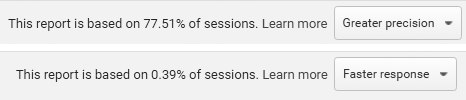
When sampling is in effect, you see a message at the top of the report that says This report is based on N% of sessions.

To the right of that message, you can select one of two options to change the sampling size:

  • Greater precision: uses the maximum sample size possible to give you results that are the most precise representation of your full data set
  • Faster response: uses a smaller sampling size to give you faster results
Sampling controls: Greater precision or Faster response
Sampling controls.

Your data automatically refreshes using the new setting. Your preference is saved across all of your reports, but resets after you close Analytics.


https://www.youtube.com/watch?v=rTby_xkFOI8


Filed Under: Google Analytics Individual Qualification Exam Answers, Uncategorized @en

Which of these is NOT possible when you link your AdWords account to Google Analytics?

August 30, 2017 By CertificationAnswers


Which of these is NOT possible when you link your AdWords account to Google Analytics?


Create remarketing lists in Analytics to use in AdWords campaigns


View AdWords click and cost data alongside your site engagement data in Google Analytics


Adjust keyword bids inside Google Analytics


Import Analytics goals and transactions into AdWords as conversions


Explanation:

Linking your AdWords account to your Analytics property lets you see the full customer cycle, from how they interact with your marketing (e.g., seeing ad impressions, clicking ads) to how they finally complete the goals you’ve set for them on your site (e.g., making purchases, consuming content).
Read more here: https://support.google.com/analytics/answer/1033961


Link/unlink AdWords and Analytics

Linking your AdWords account to your Analytics property lets you see the full customer cycle, from how they interact with your marketing (e.g., seeing ad impressions, clicking ads) to how they finally complete the goals you’ve set for them on your site (e.g., making purchases, consuming content).

See ad and site performance data in the AdWords reports in Analytics.
Import Analytics goals and Ecommerce transactions into your AdWords account.
Import Analytics metrics like Bounce Rate, Avg. Session Duration, and Pages/Session into your AdWords account.
Enhance your AdWords remarketing with Analytics Remarketing and Dynamic Remarketing.
Get richer data in the Analytics Multi-Channel Funnels reports.
Watch a video
Benefits of Linking your Google Analytics and Adwords Accounts

Before you start, make sure that you’re using a Google Account that has Edit permission for the Analytics property and Administrative access for the AdWords account(s).
Note: These permissions are only required for the linking process. After you’ve created the link, the permissions can be modified or removed entirely.
Link AdWords and Analytics
The linking wizard makes it easy to link your AdWords account(s) to multiple views of your Analytics property. If you have multiple Analytics properties that want to link to your AdWords account(s), complete the linking process for each property.

Sign in to Google Analytics..

Note: You can also open Analytics from within your AdWords account. Click the Tools tab, select Analytics, and then follow the rest of these instructions.
Click Admin and navigate to the property you want to link.
In the PROPERTY column, click AdWords Linking.
Click + NEW LINK GROUP
Select the AdWords accounts you want to link, then click Continue.
Turn linking ON for each view in the property in which you want AdWords data.
Optionally, select Enable Google Display Network Impression Reporting to also include that data in each view.
If you’ve already enabled auto-tagging in your AdWords accounts, or if you want to let the linking process automatically enable auto-tagging in your AdWords accounts, skip to the next step (9).

However, if you want to manually tag your AdWords links, click Advanced settings > Leave my auto-tagging settings as they are.
Click Link accounts.
Congratulations! Your accounts are now linked. If you opted to use auto-tagging (recommended), Analytics will start automatically associating your AdWords data with customer clicks.

When you link an AdWords account and an Analytics property, anyone with access to the view(s) you selected during linking will be able to see your imported AdWords data. Likewise, if you choose to import Analytics data (goals/Ecommerce transactions, metrics, or Remarketing lists) into your AdWords account, anyone with access to that AdWords account will be able to see your imported Analytics data.
Edit a link group
Once you’ve created a link group, you can add or remove AdWords accounts and Analytics views from that link group. You can also rename the link group.

If you want to remove all of your AdWords accounts from your link group, follow the instructions for unlinking (in the next section).

To edit a link group:

Sign in to Google Analytics..
Note: You can also quickly open Analytics from within your AdWords account. Click the Tools tab, select Analytics, and then follow the rest of these instructions.
Click Admin and navigate to the property whose AdWords linking you want to edit.
In the PROPERTY column, click AdWords Linking.
In the table, click the link group that you want to edit.
To add or remove AdWords accounts from your link group, click Edit in the Select linked AdWords accounts section, and check or uncheck the boxes next to those accounts.
To add or remove Analytics views, click Edit in the Link configuration section. Turn linking on or off as necessary.
Click Save.
Unlink Analytics and AdWords
If you want to unlink all of the AdWords accounts in a link group from your Analytics property, you need to delete the entire link group.

If you have multiple AdWords accounts in a link group and want to unlink only some of your accounts from your Analytics property, follow the Edit a link group instructions in the previous section.

To delete an entire link group:

Sign in to Google Analytics..
Note: You can also quickly open Analytics from within your AdWords account. Click the Tools tab, select Analytics, and then follow the rest of these instructions.
Click Admin and navigate to the property you want to unlink.
In the PROPERTY column, click AdWords Linking.
In the table, click the link group that you want to delete.
Click Delete link group.
In the confirmation pop-up, click Delete.
Keep in mind, if you delete a link group, all data will stop flowing between your AdWords and Analytics accounts:


https://www.youtube.com/watch?v=sqPjIeBwS7s


Filed Under: Google Analytics Individual Qualification Exam Answers, Uncategorized @en

  • « Go to Previous Page
  • Page 1
  • Interim pages omitted …
  • Page 20
  • Page 21
  • Page 22
  • Page 23
  • Page 24
  • Interim pages omitted …
  • Page 75
  • Go to Next Page »

Primary Sidebar

Use it to find answers


Searching in our PDF with correct answers is easier and you can save time.

Don’t waste your time, prepare your exam and Instead of searching answers one by one, answers that you not find, or probably incorrects.


Buy Now!

TRY GOOGLE WORKSPACE FREE AND PROMO CODE

Google Workspace promo code

Subscribe and get:

Info of the exams for FREE.
News and promotions.
Tips for your exams.


SUBSCRIBE

TRY SEMRUSH FREE 30 DAYS

Semrush FREE coupon

  • Home
  • Benefits
  • Some of our last scores
  • Our customers say…
  • FAQs
  • Resources
    • Jobs
  • Subscribe
  • Study Guides and Answers
    • SkillShop
      • Google Ads
        • Google Ads Measurement
        • Google Ads Display
        • Google Ads Search
        • Google Ads Shopping Advertising
        • Google Ads Video Advertising
        • Google Ads Apps
        • Google Analytics Individual Qualification
      • Google Marketing Platform
        • Campaign Manager
        • Creative
        • Display & Video 360
        • Search Ads 360
        • Google Mobile Experience Certification Exam Answers
      • Youtube
        • Youtube Channel Growth
        • Youtube Content Ownership
        • Youtube Asset Monetization
        • YouTube Music Assessment
        • YouTube Creative Essentials
        • Video for Brand Basics
      • Digital Transformation Certification
        • Activate customer-centric
        • Choose the right mobile asset
        • How to find mobile customers
        • Make engaging mobile messages
        • Measure mobile effectively
        • Measure your customer-centric
        • Prepare for a programmatic
        • Programmable marketing basics
      • Android Enterprise Academy
        • Android Enterprise Platform Associate
        • Android Enterprise Professional Associate
      • Google My Business Basics
      • Google Waze
        • Waze Local Fundamentals
        • Waze Local advance
      • Smart
        • Measurement Smart
        • Performance Smart
        • Platforms Smart
        • Video Smart
      • Jamboards Academy
        • Deploying Jamboards
        • Selling Jamboards
    • HubSpot
      • HubSpot Inbound Certification Answers
      • HubSpot Inbound Marketing Certification Exam Answers
      • Hubspot Inbound Sales Certification Exam Answers
      • Hubspot Email Marketing Certification Exam Answers
      • Hubspot Content Marketing Exam Answers
      • Hubspot Growth-Driven Design Agency Exam Answers
      • Hubspot Growth-Driven Design Agency Exam Answers
      • HubSpot Sales Software Certification Exam Answers
      • HubSpot Sales Enablement Certification Answers
      • HubSpot Social Media Certification Exam Answers
      • HubSpot Marketing Software Certification Answers
      • HubSpot CMS for Developers Certification Exam Answers
      • HubSpot Contextual Marketing certification Exam Answers
      • HubSpot Sales Management Certification Exam Answers
      • HubSpot Frictionless Sales Certification Exam Answers
      • HubSpot CMS For Marketers Certification Exam Answers
      • Hubspot Service Hub Software Certification Answers
      • HubSpot Reporting Certification Exam Answers
      • HubSpot Digital Advertising Certification Answers
      • Hubspot Client Management Certification Exam Answers
      • Hubspot Sales Hub Implementation Answers
      • Hubspot CMS Hub Implementation Certification Answers
      • HubSpot PieSync Fundamentals Certification Exam Answers
      • HubSpot Guided Client Onboarding Certification Exam Answers
      • Hubspot Platform Consulting Certification Exam Answers
      • HubSpot Trainer Certification Answers
      • Hubspot Partner Demo Course Answers
      • HubSpot Solutions Partner Certification Answers
    • Hootsuite
      • Hootsuite Platform
      • Hootsuite Social Marketing
    • Google Digital Garage
    • Bing Ads
    • Analytics Academy
      • Google Analytics for Beginners
      • Advanced Google Analytics
      • Google Analytics for Power Users
      • Getting Started With Google Analytics 360
      • Introduction to Data Studio
      • Google Tag Manager Fundamentals
    • Google Educator Level 1
    • Klipfolio Certification
      • Klipfolio Expert Certification
      • Klipfolio Partner Certification
    • Yandex
      • Yandex Direct
      • Yandex Metrica
    • Amazon
      • Amazon DSP Certification Assessment Answers
      • Amazon Retail for Advertisers Certification Assessment Answers
      • Amazon Sponsored Ads Certification Assessment Answers
    • Twitter
      • Twitter Video Ad Badge Assessment Answers
    • Woorank
  • Contact

FEEL FREE TO SUPPORT US!

Give us a tip for a coffee ☕, beer 🍺, pizza 🍕, … 🙂


Give us a tip
  • Terms of Use
  • Privacy policy
  • Cookies policy